
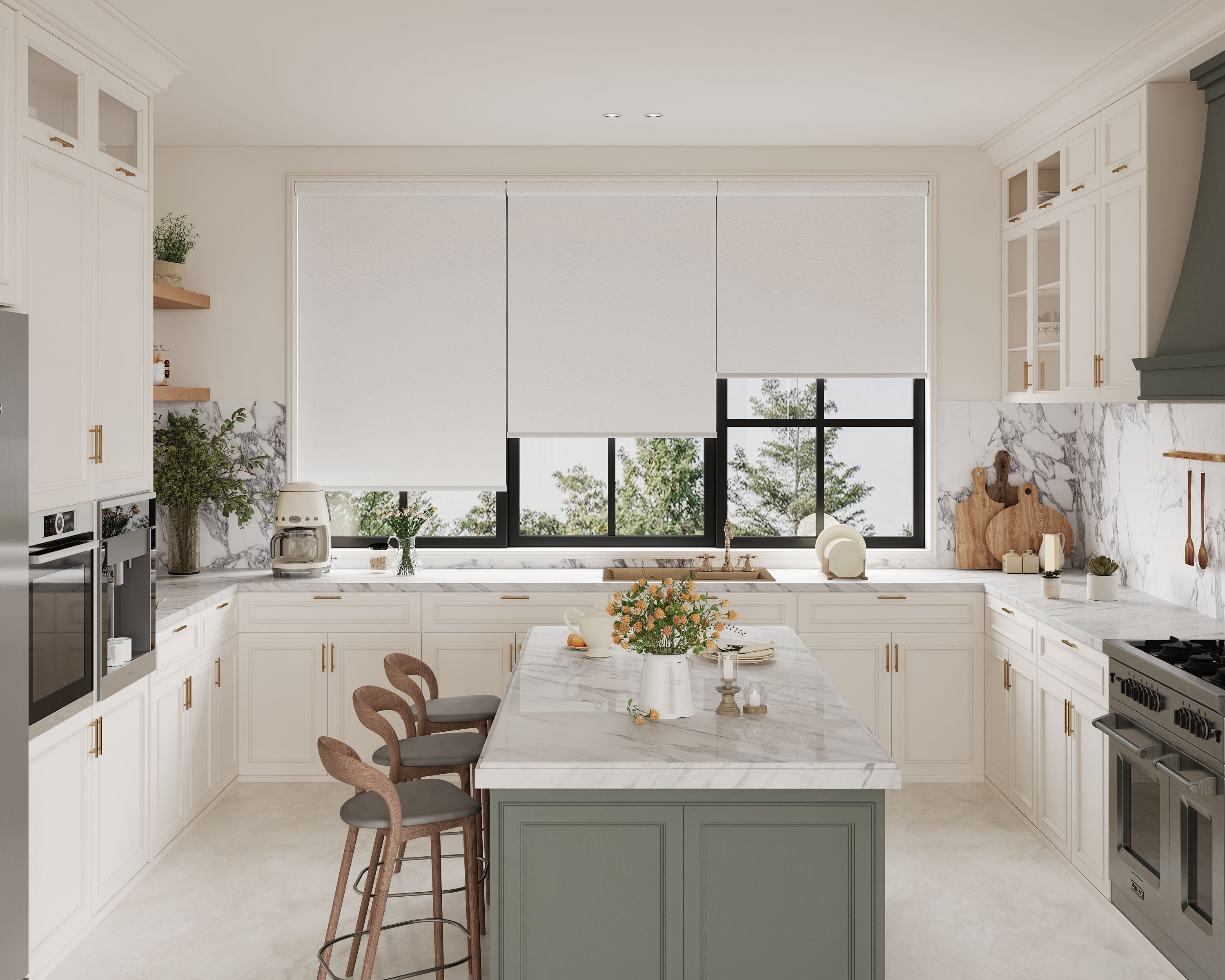
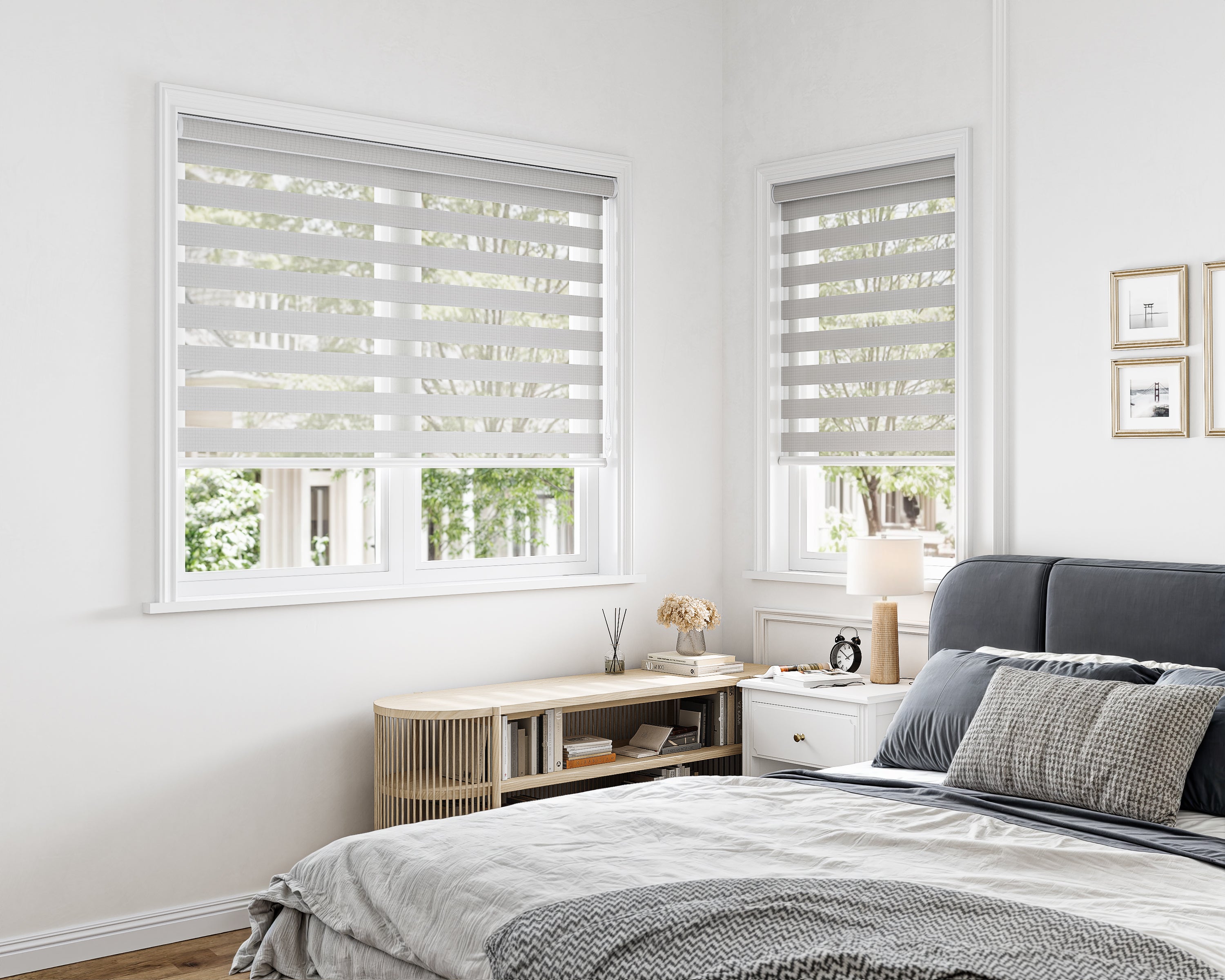
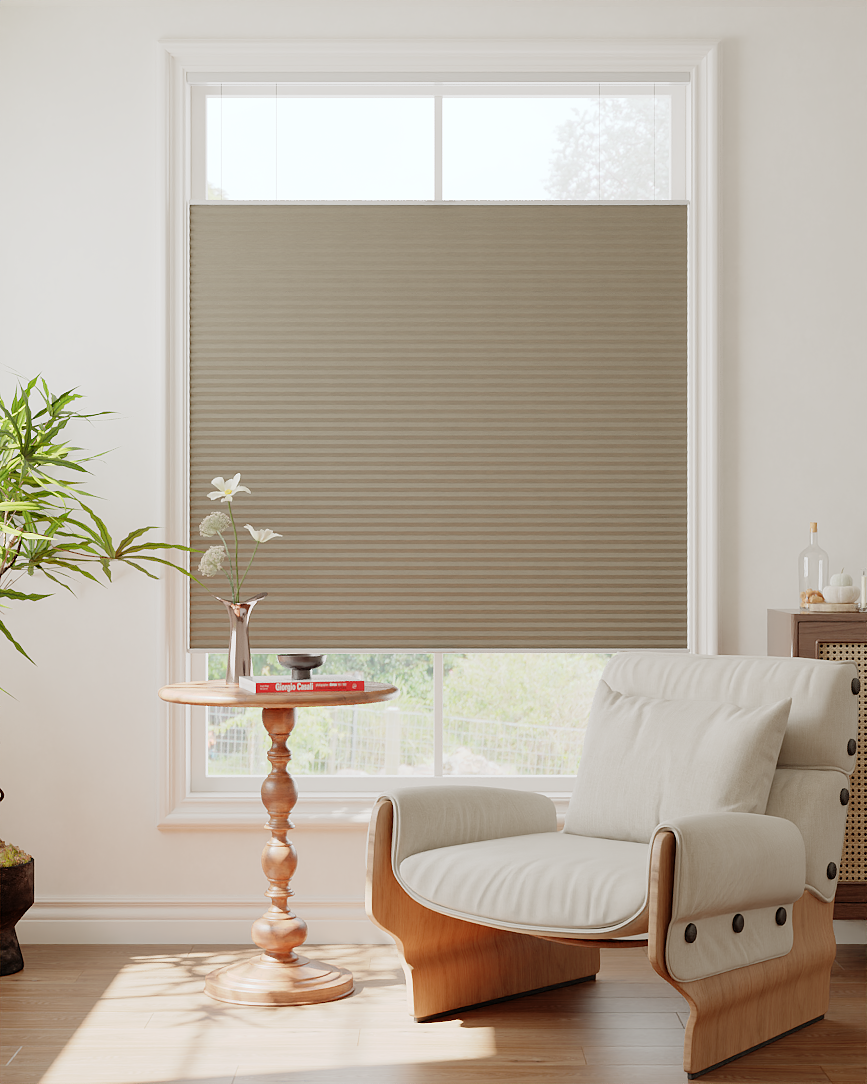
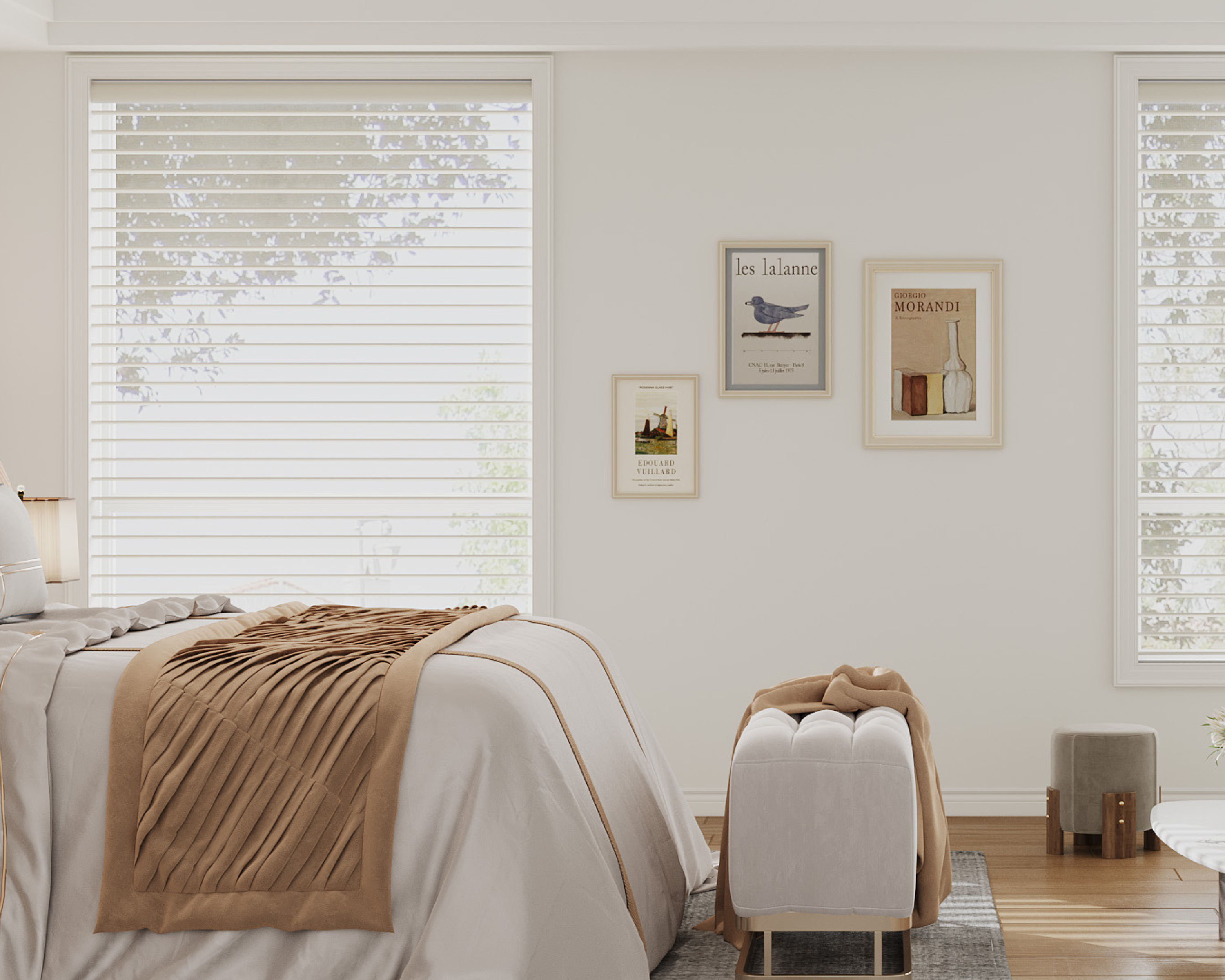
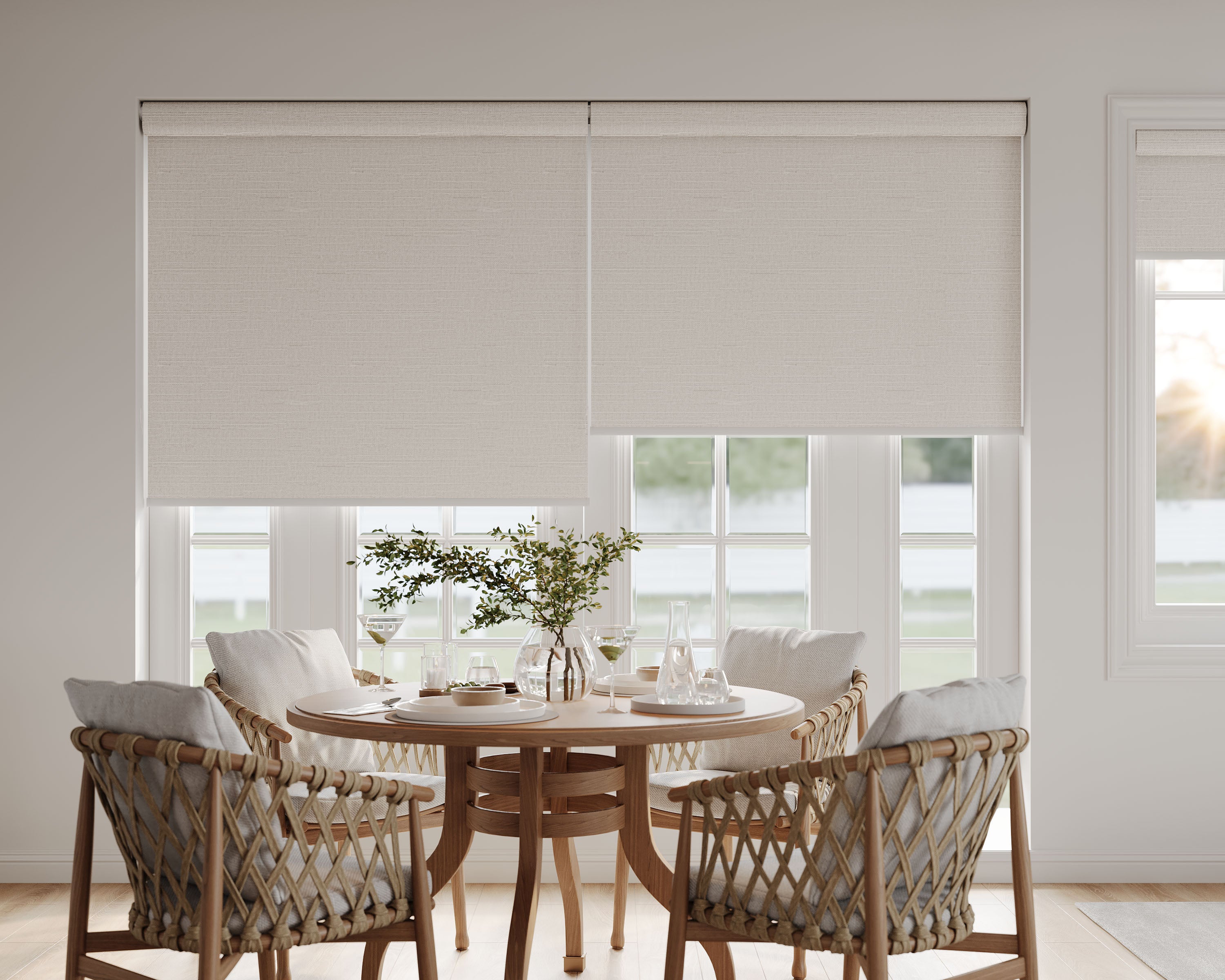


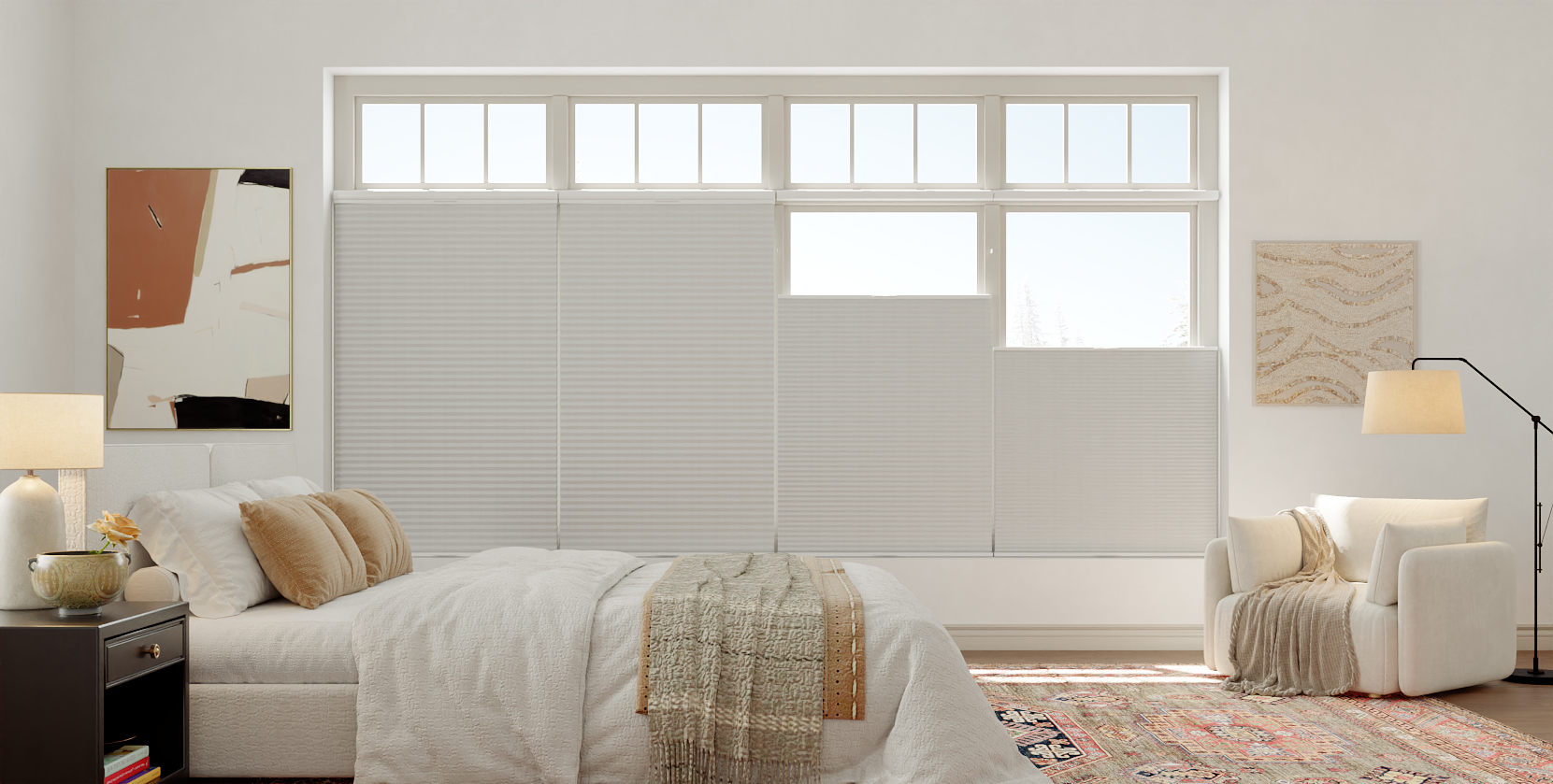


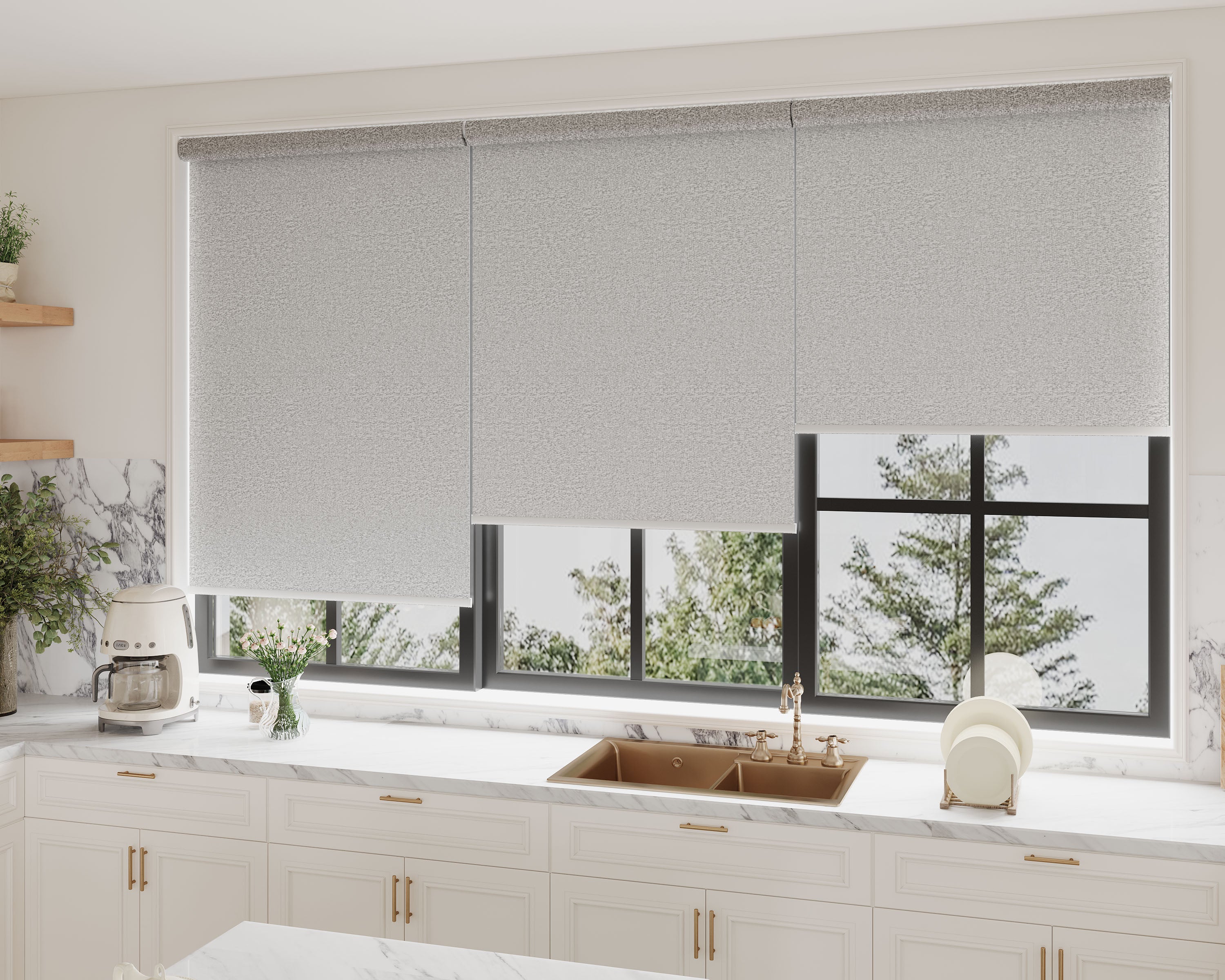

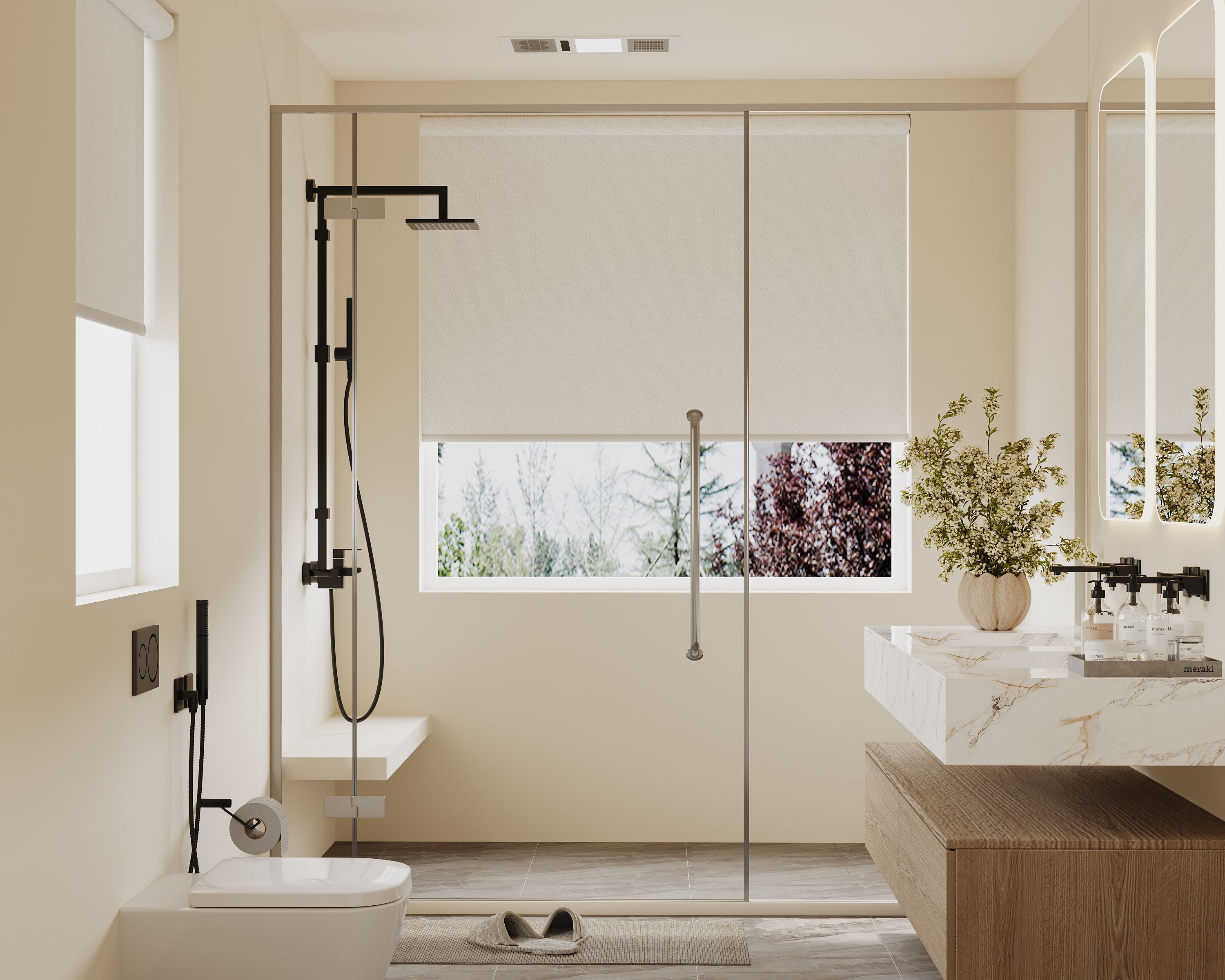


Unlocking voice control for your smart roller shades with Alexa or Google Assistant feels like a leap into the future—until you're stuck trying to connect them. The process isn't difficult, but it requires following the right steps in the right order within the correct app. This guide eliminates the guesswork, providing two clear, parallel paths: one for the Amazon Alexa ecosystem and one for Google Home. We'll cover everything from the crucial prerequisites to creating handy routines, ensuring you can command your shades with just your voice.
Here’s our roadmap:
-
The Universal Checklist: What you need before you open any app.
-
The Alexa Connection Path: A step-by-step walkthrough using the Alexa app.
-
The Google Home Connection Path: A step-by-step walkthrough using the Google Home app.
-
Pro Tips & Voice Commands: How to name shades and create groups for seamless control.
-
Troubleshooting: Fixing the most common "not found" and "no response" errors.
Before You Begin: The Universal Prerequisites
Skipping these steps is the #1 reason for setup failure. Ensure you have:
-
A Stable Wi-Fi Network: Your shades and your phone/tablet must be on the same 2.4GHz Wi-Fi band (most smart home devices don't work on 5GHz initially).
-
Your Shades are Installed & Set Up in Their Native App: Your smart shades must be fully operational and connected via their manufacturer's own app (e.g., Tuya Smart, Smart Life, or a brand-specific app). Voice control works through this app.
-
The Correct Hub/Device:
-
For Alexa: An Alexa-enabled device like an Echo Dot, Echo Show, or the Alexa app itself.
-
For Google: A Google Nest speaker, display, or the Google Home app.
-
-
Account Details: Know the login for your shade's manufacturer app. You'll likely need to link this account.
How to Connect Smart Roller Shades to Amazon Alexa
Follow these steps in sequence within the Alexa app on your smartphone.
Step 1: Discover and Enable the Correct "Skill"
-
Tap the "More" tab (bottom right), then select "Skills & Games."
-
Use the search bar to find the skill that matches your shade's brand (e.g., "Tuya Smart" or "Smart Life"). This is often the same name as the manufacturer's app.
-
Tap "Enable To Use." You will be prompted to log into your shade's manufacturer account (e.g., your Tuya account) to link it to Alexa.
Step 2: Discover Your Devices
-
After linking the skill, go back to the "Devices" tab (bottom).
-
Tap the "+" icon in the top right and select "Add Device."
-
Choose "Other" and then "Discover Devices." Alexa will search for new devices for up to 45 seconds.
-
Your shades should appear as individual devices, often with generic names like "roller shade 1."
Step 3: Rename and Organize Your Shades
-
In the "Devices" tab, find your new shade. Tap on it.
-
Tap the gear icon (settings) in the top right.
-
Select "Edit Name" to give it a logical name (e.g., "Living Room North Shade").
-
You can also assign it to a Room (e.g., Living Room) here, which helps with group commands.
How to Connect Smart Roller Shades to Google Assistant
Follow these steps in sequence within the Google Home app on your smartphone.
Step 1: Link the Service via "Works with Google"
-
Tap the "+" icon in the top left to "Add device."
-
Select "Works with Google."
-
Use the search to find your shade's brand service (e.g., "TuyaSmart" or "Smart Life").
-
Tap it and follow the prompts to "Link Account." Log into your shade's manufacturer account when asked.
Step 2: Import and Assign Your Devices
-
After account linking, Google will usually ask if you want to import devices. Confirm "Yes."
-
Your shades will appear in your device list with default names.
-
Tap and hold on a shade's tile, then tap the gear icon for Settings.
-
Tap the device name to rename it (e.g., "Kitchen Window").
-
In settings, you can also assign it to a Room (e.g., Kitchen) for better organization.
Pro Tips: Voice Commands, Groups, and Routines
Once connected, move beyond basic commands.
Effective Voice Command Examples:
-
"Alexa/Google, open the living room shades." (If assigned to a room)
-
"Alexa/Google, set the bedroom shade to 50%." (For partial opening)
-
"Hey Google, lower the kitchen blind." (Synonyms often work)
Creating Groups for Unified Control:
-
In either app, create a Room (e.g., "Living Room") and assign all shades in that space to it. You can then say, "Alexa, close the living room."
-
For more control, create a custom Group (e.g., "Front Windows") containing specific shades from different rooms.
Setting Up Useful Automations (Routines):
Both platforms allow you to create routines triggered by time, voice, or other devices. For inspiration, see our guide on practical IFTTT automations for smart shades.
-
Morning Routine: A voice command like "Alexa, good morning" can open shades, turn on lights, and read the news.
-
Schedule-Based: Automatically open shades at 7:00 AM on weekdays.
-
Sunset Routine: Automatically close all shades at sunset for privacy.
Troubleshooting Common Connection Issues
If your shades aren't discovered or aren't responding, work through this checklist.
| Problem | Likely Cause | Solution |
|---|---|---|
| "Device not found" during discovery. | Shades not on same Wi-Fi network; Skill/Service not linked correctly. |
1. Verify shades are online in their native app. 2. Disable & re-enable the Skill/Linked service. Log out and back in. |
| "Device is unresponsive" to voice. | Wi-Fi signal weak to shade; hub/device offline; low battery. |
1. Check Wi-Fi strength at the shade. A Wi-Fi extender may help. 2. Reboot your router and Alexa/Google device. 3. Check shade battery levels. |
| Commands control the wrong shade. | Shades are poorly named or in the wrong room group. | Rename shades clearly in the Alexa/Google Home app. Use unique names (North, East, Desk, Bed). |
| Skill/Service won't link account. | Incorrect login for the manufacturer's app. | Use the exact same email/password you use in the shade's native app (e.g., Tuya Smart). |
Final Setup Checklist
Before you consider the setup complete, verify each point.
| Platform | Task | ✅ |
|---|---|---|
| Both | Shades are online & controllable in their native manufacturer app. | |
| Both | My phone and shades are on the same 2.4GHz Wi-Fi. | |
| Alexa | The correct Skill is enabled and my manufacturer account is linked. | |
| Alexa | Devices were discovered and appear in the Alexa app. | |
| The service is linked in "Works with Google." | ||
| Devices were imported and appear in the Google Home app. | ||
| Both | I have renamed each shade clearly (e.g., "Master Bedroom Left"). | |
| Both | I can successfully give a voice command ("open/close [shade name]"). |
Your Next Steps:
-
Get the Basics: Understand the underlying technology with our beginner's guide to smart shade Wi-Fi and Bluetooth.
-
Solve Problems: If you hit a snag, our troubleshooting guide for connectivity and batteries is your next stop.
-
Automate: Explore creative IFTTT automations to make your shades self-operating.
-
Expand the System: Learn about integrating shades with smart lighting and thermostats for whole-home harmony.
Explore Custom Roller Shades


Frequently Asked Questions
Do I need a special hub to use smart roller shades with Alexa or Google?
It depends on the shade. Many modern smart shades connect directly to Wi-Fi and require no additional hub. Some brands (like Zigbee or Z-Wave based shades) do require their own proprietary hub, which then connects to your network. Check your product specifications. The connection process in the voice app is similar once the hub is set up.
Can I control my smart shades when I'm not at home?
Yes, if your setup is correct. This requires:
-
Your shades are connected to your home Wi-Fi.
-
You've linked them to a cloud-based service (via the skill/linked account).
-
Your Alexa/Google app is connected to the internet.
If all three are true, you can use the Alexa/Google Home app from anywhere to control your shades, just as you would at home.
I have multiple brands of smart devices. Can I control them all together?
Yes, this is a key benefit of using Alexa or Google as your central platform. They act as a universal translator. You can link skills/services for your shades, lights, plugs, and thermostats. Once all devices are added, you can control them with single voice commands or include them in the same routines, regardless of manufacturer.
What's the difference between using the native app and voice control?
The native manufacturer app is for detailed setup, calibration, firmware updates, and creating scenes specific to that brand. Voice control (Alexa/Google) is for quick, hands-free daily operation and integration with other smart home devices. You will use both: the native app for advanced settings and voice for everyday convenience.
