









To move smart shades to a new hub or home, first identify what is changing: the controlling app, the home network, the physical opening or the people who own the system. These are different jobs. Resetting every motor at the start can discard a working setup before you know which change was necessary.
This guide is a preparation and handover checklist. Exact removal, commissioning and travel-limit steps depend on the motor and platform. Keep the model's instructions available, and use the current platform guidance linked below for the account and app side of the move.
Record motor, power and current administrators
Label every shade by room and opening. Record the product, motor identifier, protocol, power supply and compatible remote. Add the current controller, gateway or Thread border router where relevant, including its exact model rather than just “the hub.”
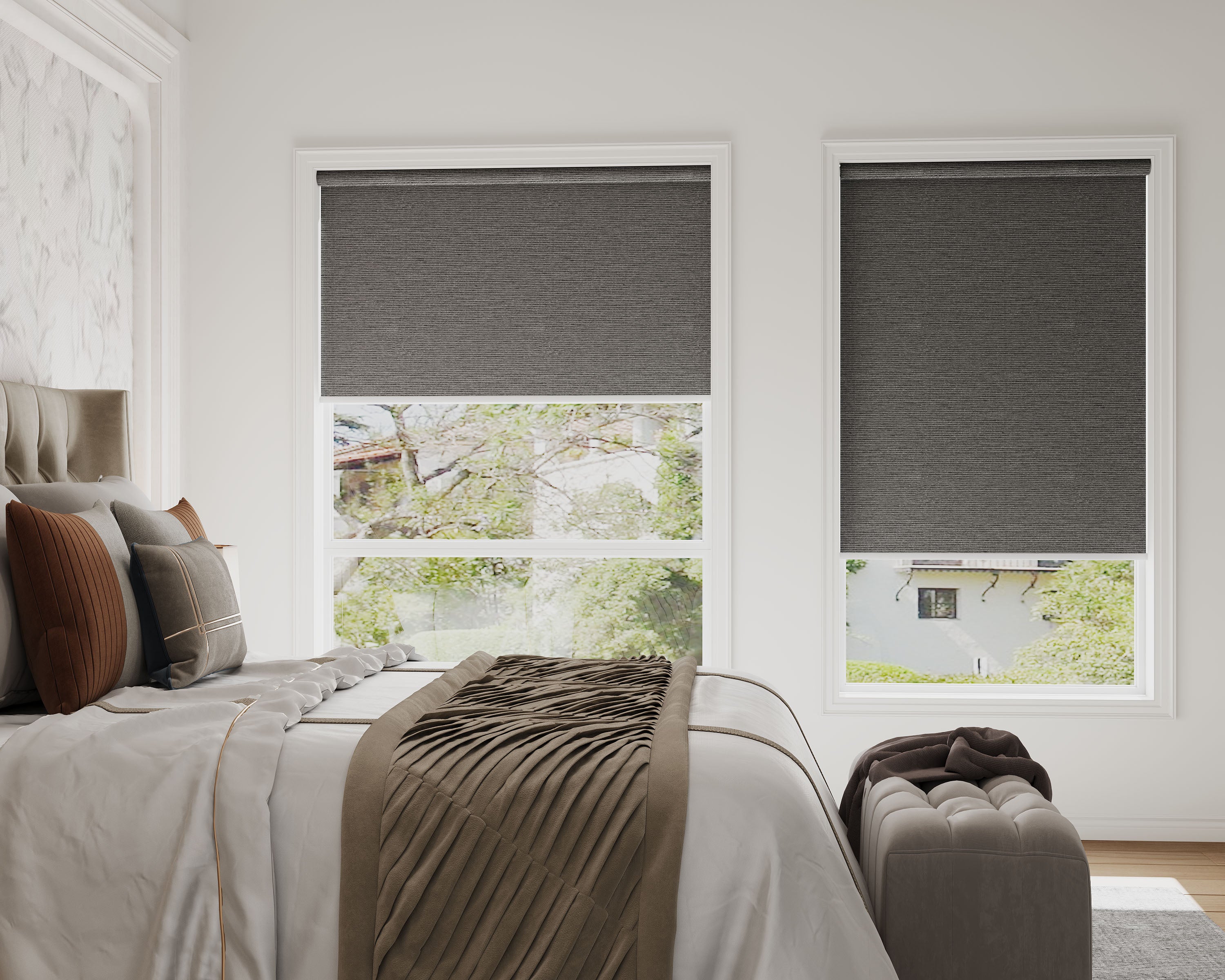
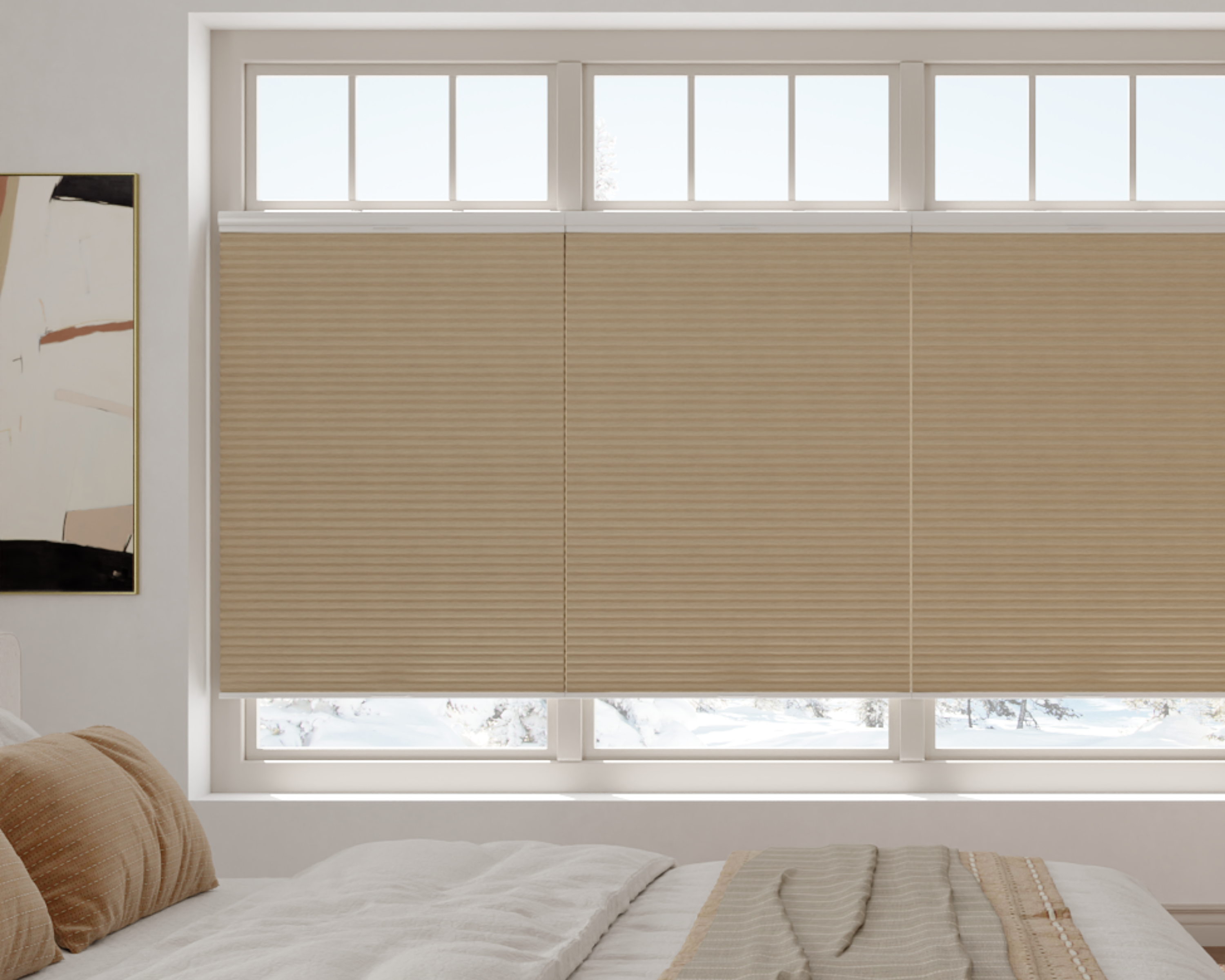
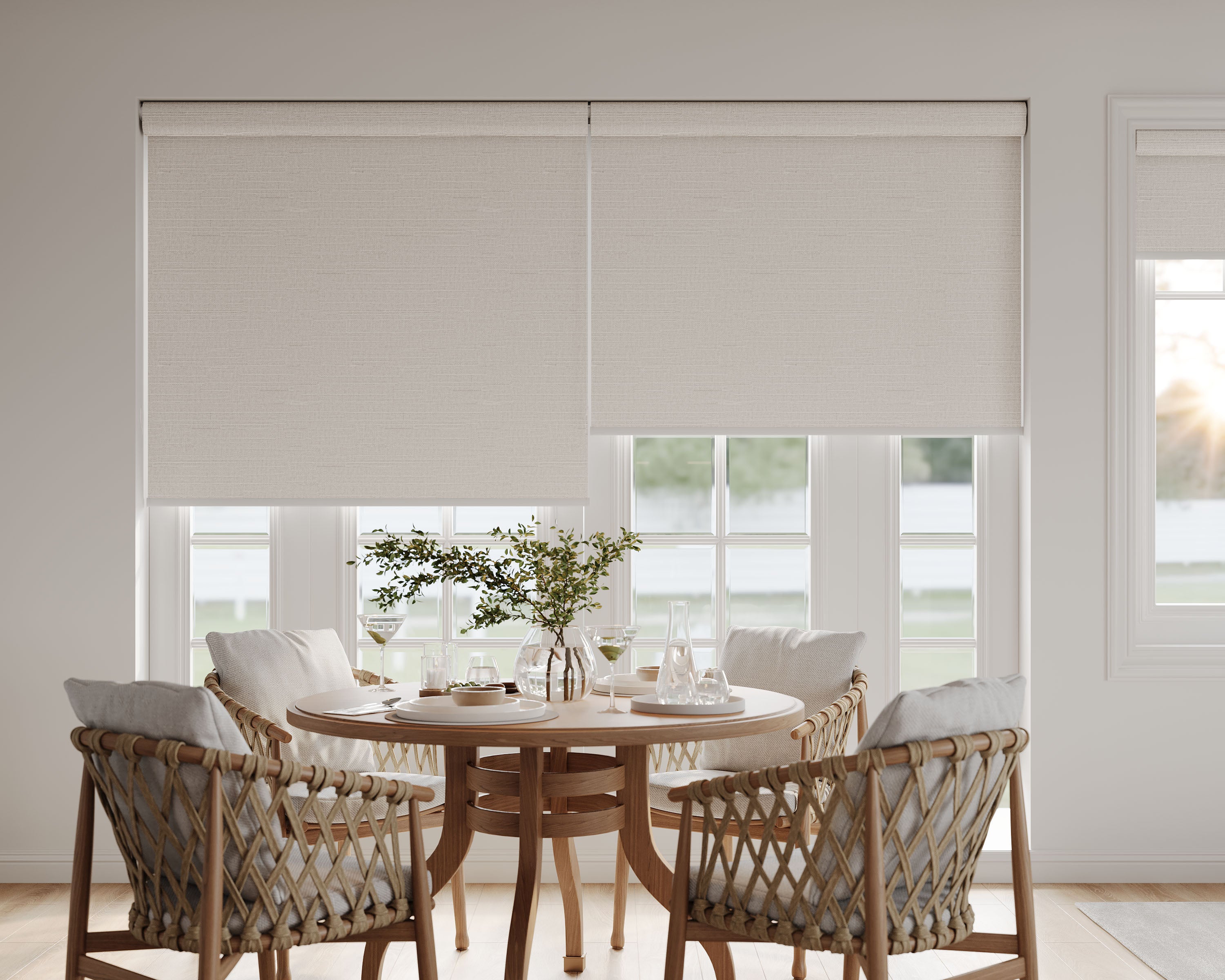
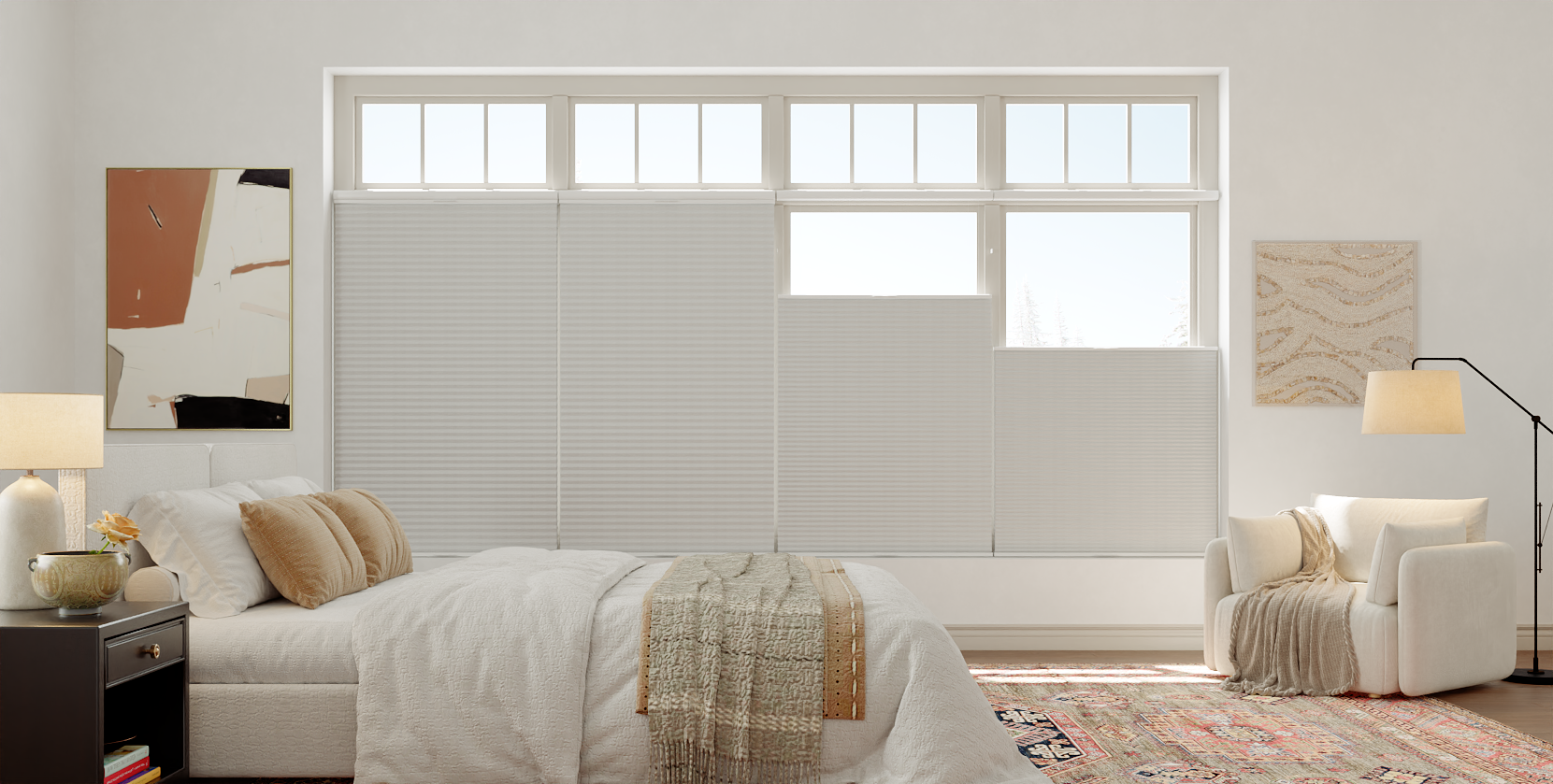
For a product such as Motorized Blackout Cellular Shades, distinguish the selected remote motor from the optional Matter over Thread motor. Keep cellular accessories with their own system; their remote/hub arrangement differs from other shade families.
Save setup codes securely and note who can administer the current home in each app. Do not paste codes into public moving inventories, property photos or room labels. Record which household members should retain access and which should lose access after the handover.
| Keep in the handover record | Why it matters |
|---|---|
| Shade and motor model, order number | Find the right manual and support path |
| Protocol and controller/gateway model | Identify the connection path that must be rebuilt or shared |
| Power supply, charger and remote | Avoid leaving essential accessories behind |
| Private setup-code location | Commission securely without exposing access information |
| App/home names and administrators | Manage the correct home and account permissions |
| Routines, groups and names | Rebuild only the behavior you actually need |
Separate sharing, network changes and ownership transfer
Adding a second platform: the shade stays in place and the existing control path may remain useful. A supported Matter sharing flow can be different from factory resetting and adding the device as new. Start from the platform that currently manages the accessory.
Replacing a controller: confirm whether the replacement platform supports the selected motor and how its official transfer or re-add process works. A new controller's logo does not establish compatibility with a proprietary remote or an arbitrary Zigbee gateway.
Changing the router or home network: identify which parts use Wi-Fi/Ethernet, Thread, Zigbee or a local remote. The shade's fabric and motor power do not reveal its network path. Follow the documented process for the relevant controller and network instead of guessing that every motor needs the same reset.
Changing owners: account permissions, connected services and any physical control accessories need a deliberate handover. Decide who will manage the home afterward. Sharing with a new account is not automatically a complete removal of the old owner's access.
Moving the actual shade: first confirm that the custom-made assembly fits the new opening and that the hardware and power arrangement remain approved. A successful electronic pairing cannot correct the wrong width, inadequate support or an obstructed fabric path.
Follow the selected platform and motor removal instructions
Apple's Matter accessory guidance distinguishes removing an accessory from Keychain, one connected service or all services. Select the intended action rather than treating those choices as equivalent. Keep the current administrator available until the receiving household has verified the required control.
Google's Matter management guide explains platform setup and sharing paths. Use the supported flow for the device's current state. When the goal is another ecosystem, check the receiving platform's requirements before removing a working connection.
For Home Assistant, consult the official Matter integration documentation for sharing and removal context. Its platform instructions do not supply a reset sequence for an unidentified shade motor.
Get the motor's actual removal/reset instructions before starting an irreversible sequence. Do not borrow a button-hold duration from another shade or repeat a limit-programming operation as a general connectivity repair. Keep the travel area clear when testing movement.
Recommission one shade and rebuild only necessary routines
- Choose a representative shade: start with one accessible opening and record its working state before making changes.
- Prepare the destination: confirm the account, home, controller and required network equipment. For Thread, verify the relevant Thread path as well as the app.
- Use the correct transfer flow: share, remove/re-add or reset only as the platform and motor documentation require for your situation.
- Verify actual movement: test open, close and position if offered, watching the shade rather than relying only on an app tile.
- Restore one routine: confirm its trigger, target shade and expected position before duplicating it across rooms.
- Check permissions: verify intended access from the new account and complete documented removal of access that should end.
Record what worked, which app functions were available and any unresolved limitations. Test the remaining shades in a manageable sequence, keeping their labels consistent. Avoid recreating old groups until you know which names and controls the new household will use.
Finish the handover with usable records
Leave the approved charger, compatible remote, mounting documents and a private setup-code location with the right person. Provide a short list of tested commands and routines, plus the support contact and motor identifier. Remove obsolete home invitations and connected services through their documented controls.
If a shade stops working during the move, use the smart-shade diagnostic guide to separate power, local controls and platform status. For replacement products, review motorized shade configurations against the destination home before ordering. A clear record makes the next change easier as well.
