
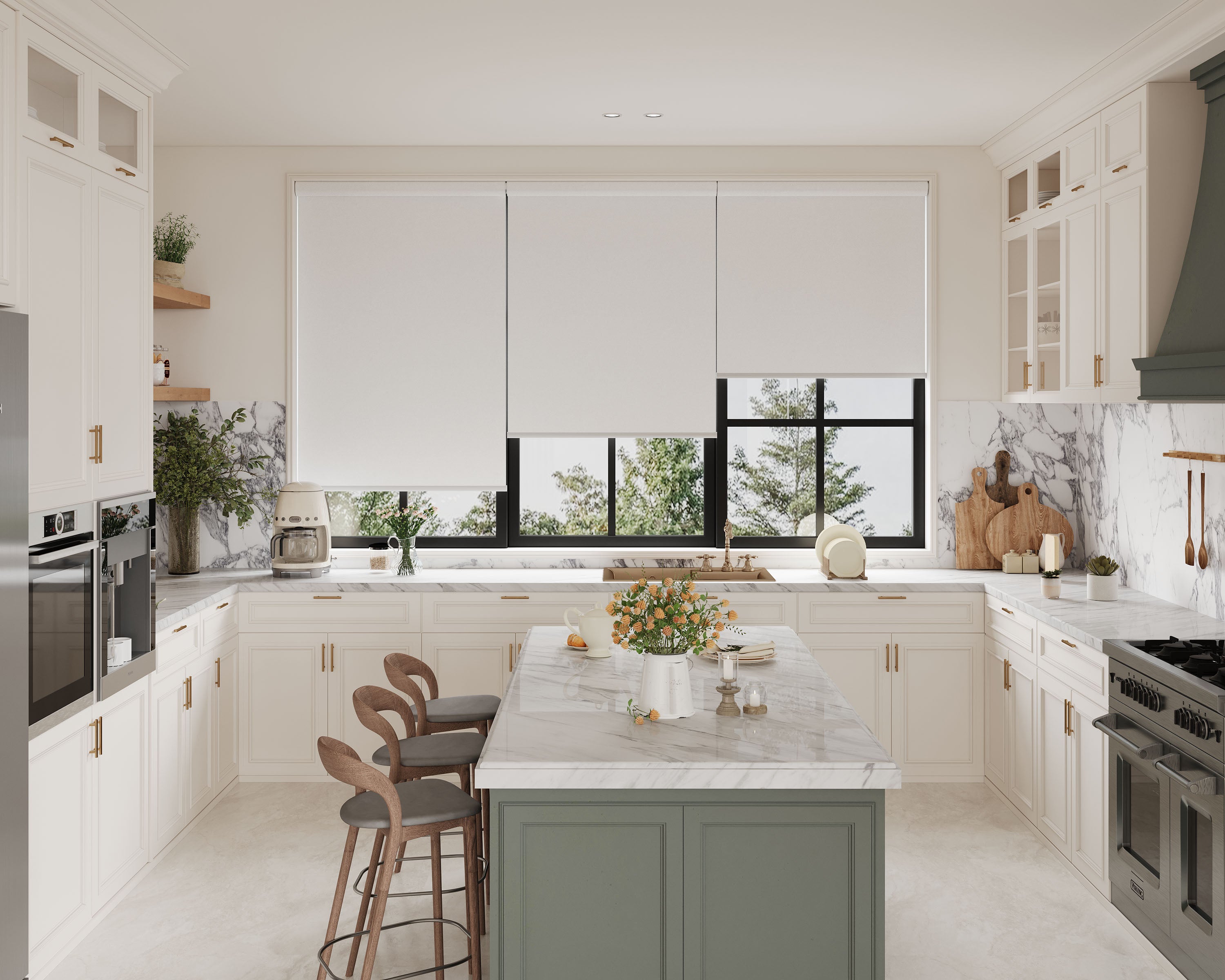
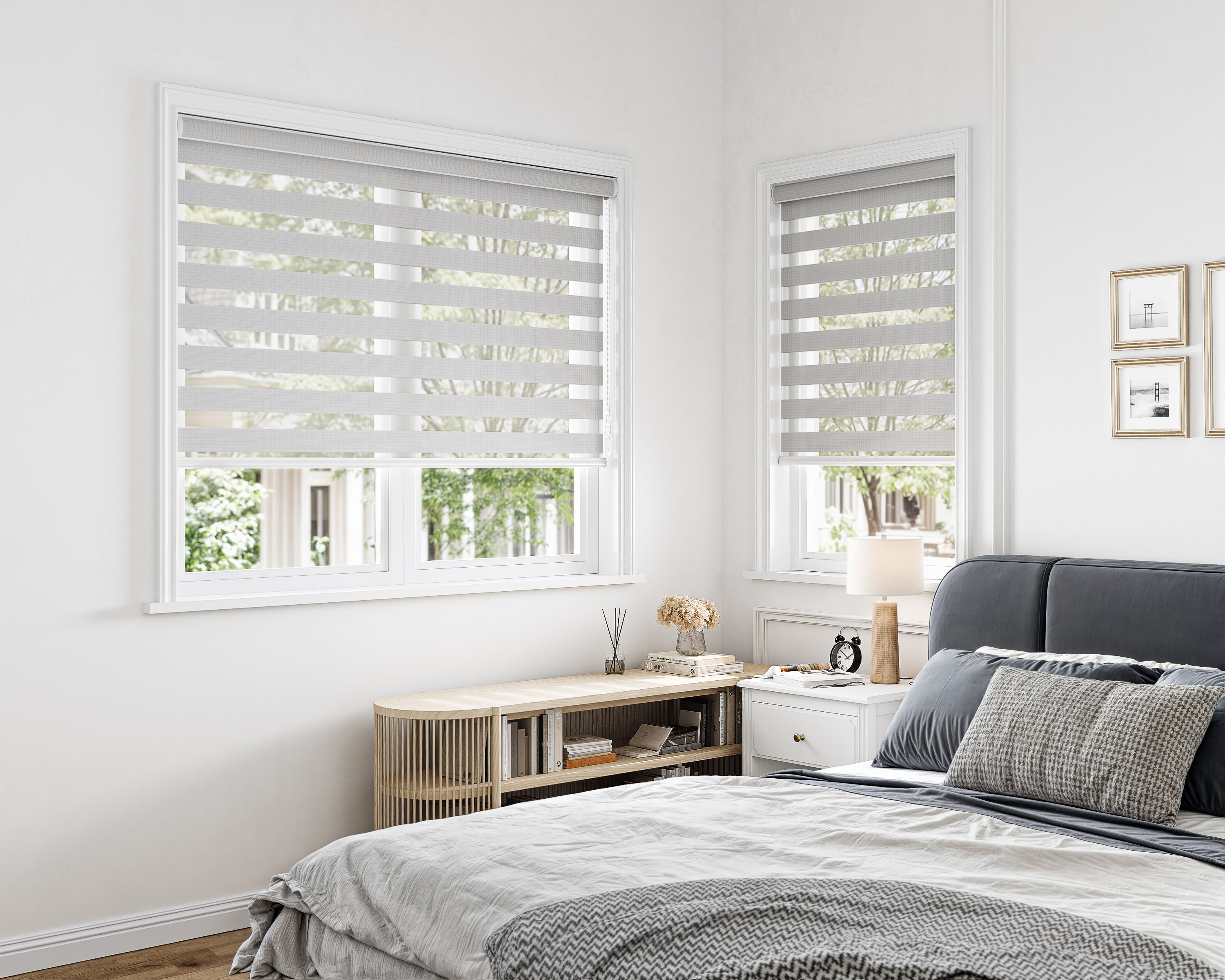
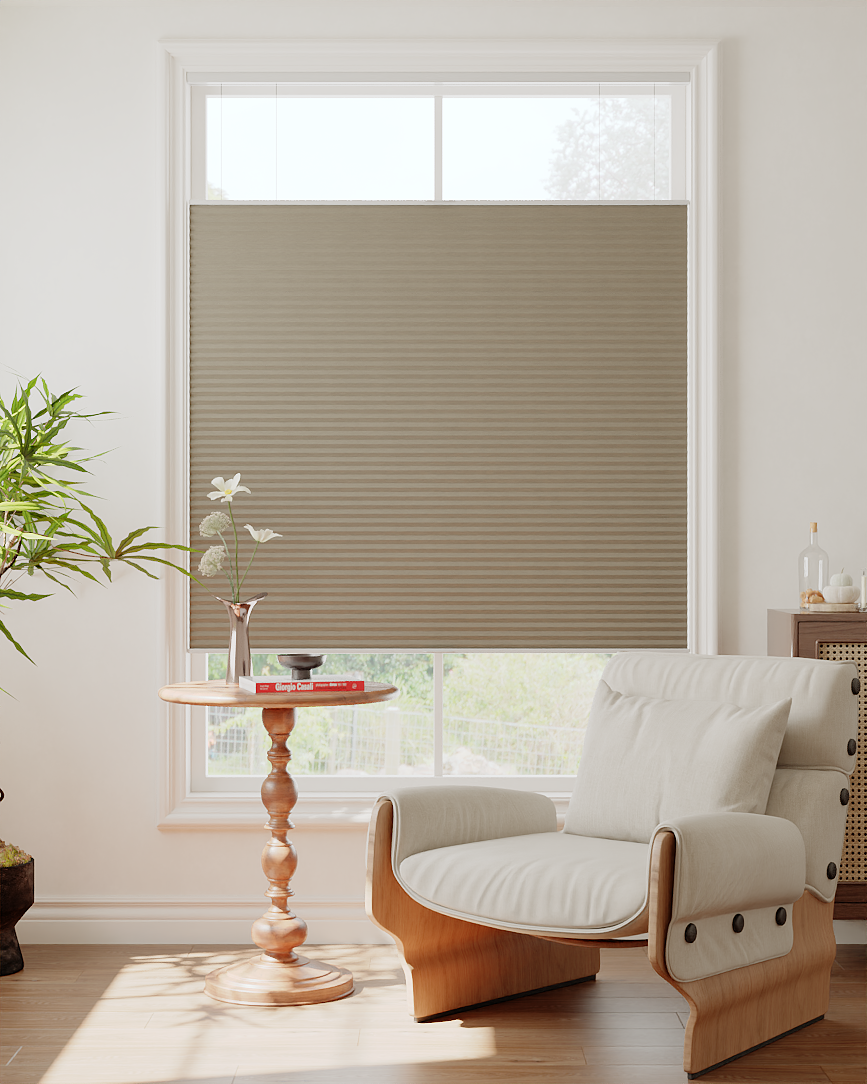
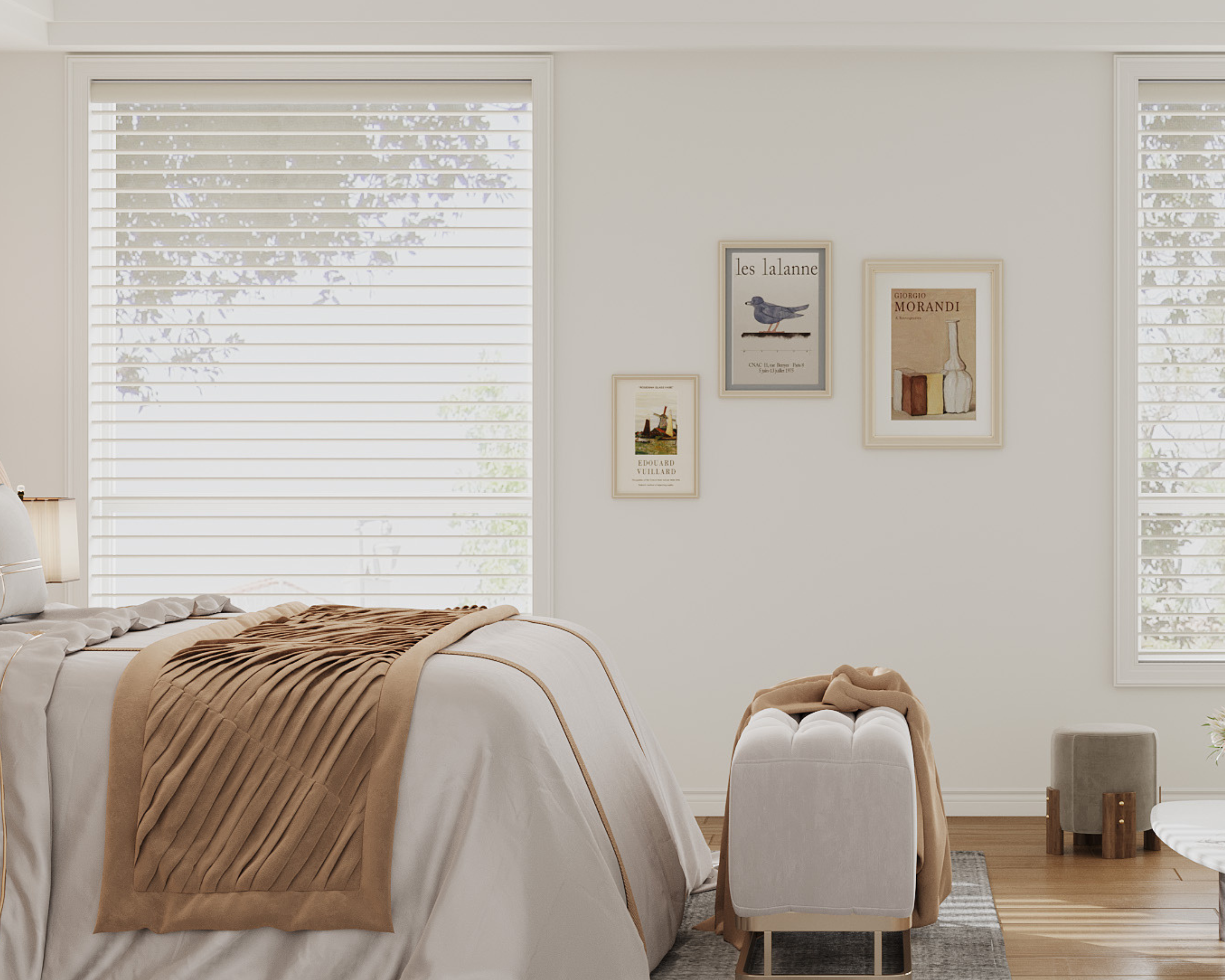







Matter over Thread shade setup starts with the motor configuration you order and the smart-home equipment already in your home. A shade that offers a Matter upgrade is not automatically a Matter shade in every configuration, and a phone app does not tell you whether the required Thread connection exists.
Use this checklist before ordering and again when commissioning the first shade. The Matter over Thread shade collection is a starting shortlist. Confirm the selected motor, included accessories and platform requirements against the current product information and the platform's own documentation.
Identify the motor and your intended platform
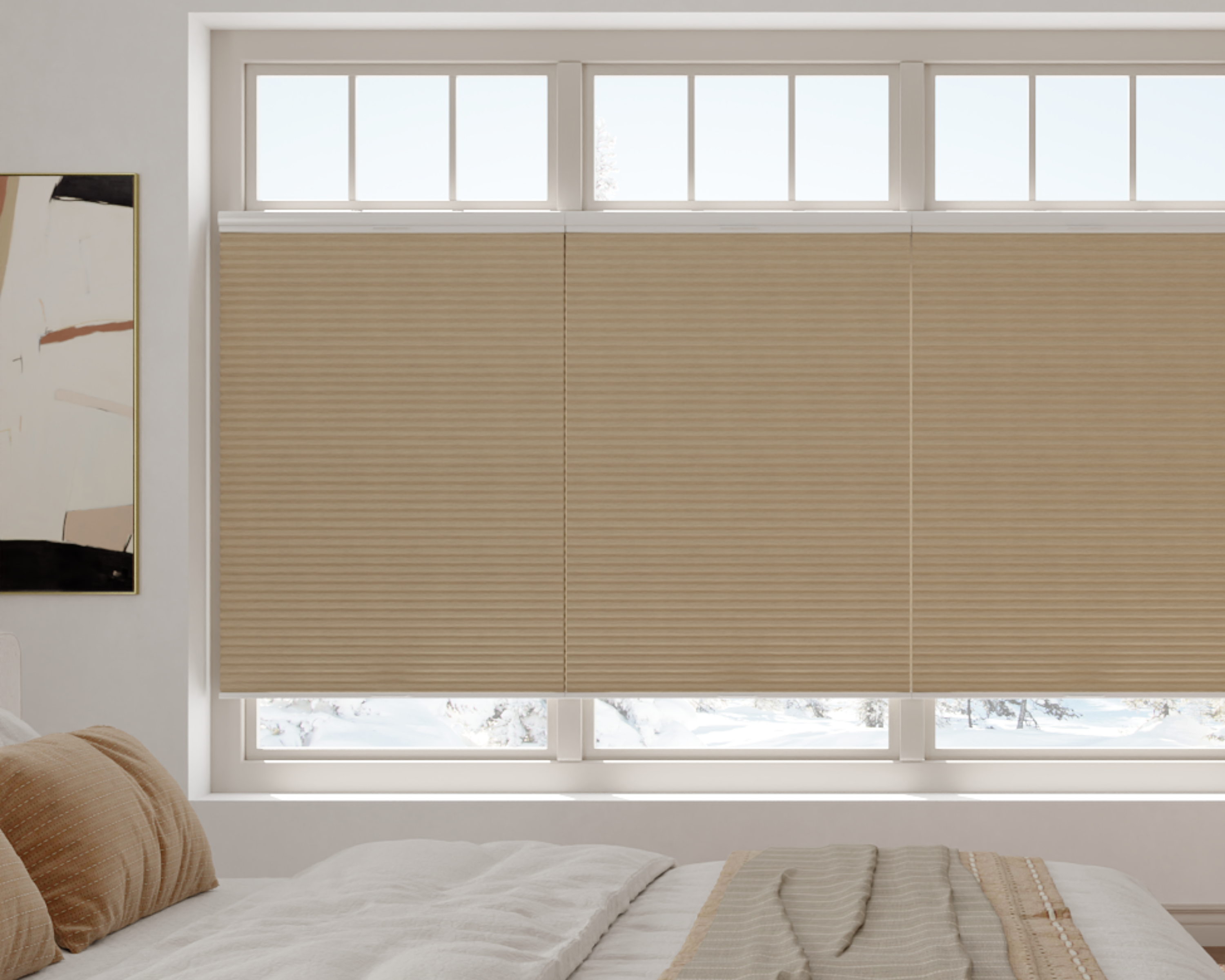
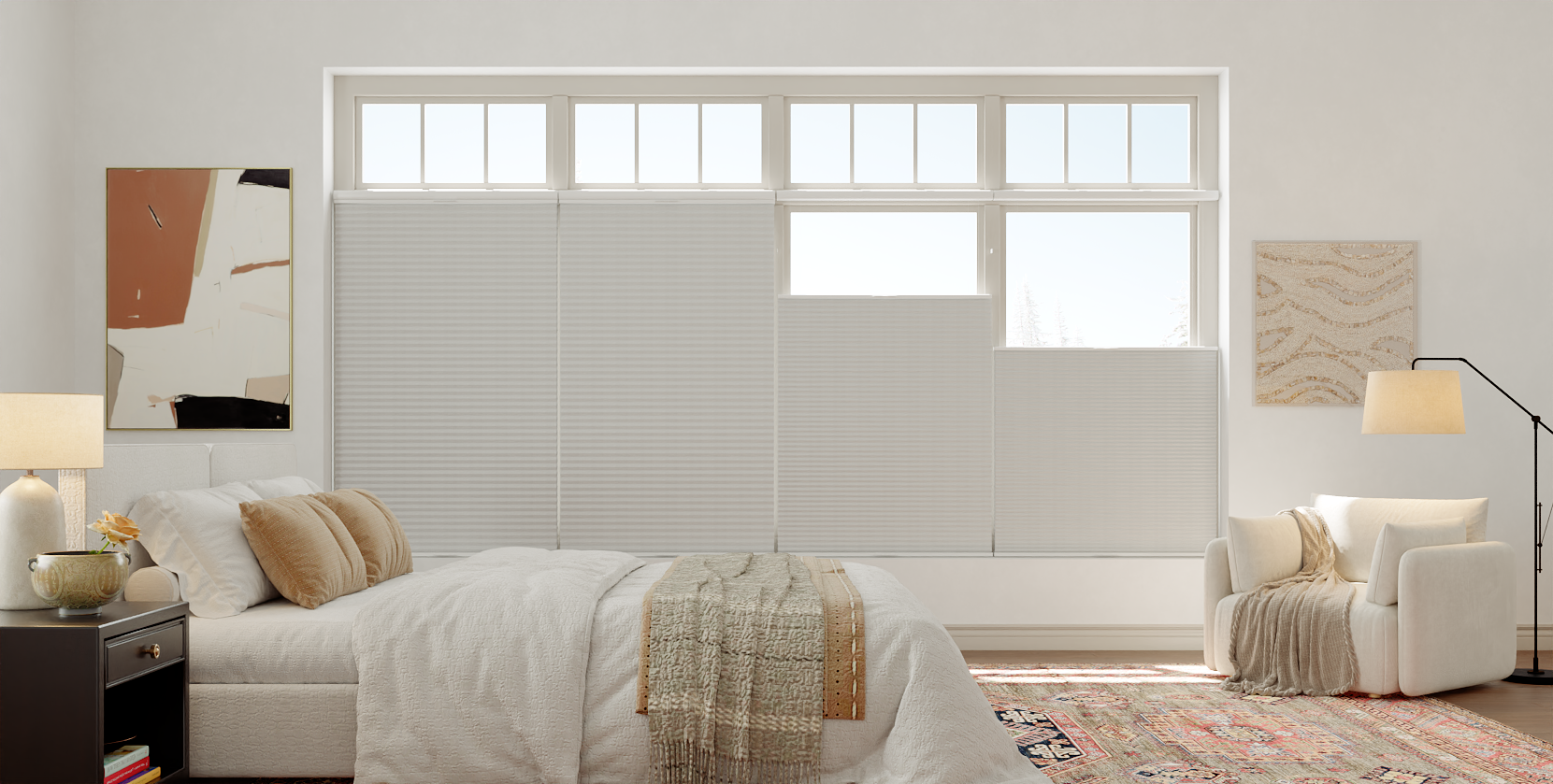
Record the full shade product name, lift choice, motor option and order number. For example, Motorized Blackout Cellular Shades offer remote operation and a Matter over Thread upgrade. The optional smart motor is the relevant choice for this checklist; the fabric name or a generic “motorized” label is insufficient.
Decide what the first working setup should do. “Open and close from Apple Home” is a clearer acceptance target than “works with everything.” Add position control if required, then note later goals such as away-from-home control, a schedule or a second platform. Each goal can add requirements beyond basic local movement.
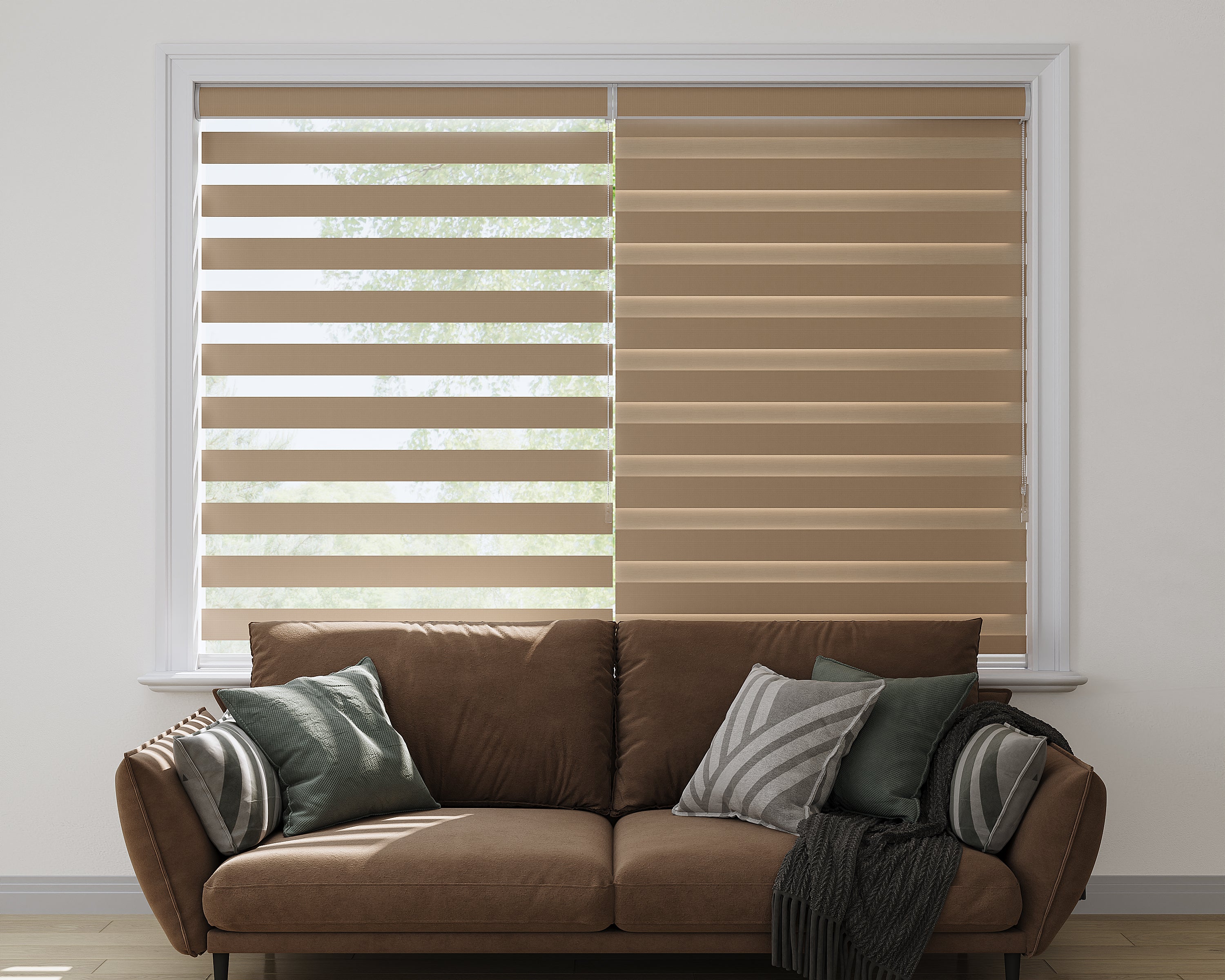
Keep cellular accessories with the cellular system. Their remote/hub arrangement differs from other shade families, so do not buy a remote because it resembles one pictured with a roller or zebra shade. Ask for the exact compatible accessory identifiers in the quote.
Distinguish controller, border router and local network
| Part | Role in the plan | Record before setup |
|---|---|---|
| Matter controller | Manages the accessory within your chosen ecosystem | Platform and supported controller model |
| Thread border router | Connects the Thread network with the home IP network | Exact model and where it is installed |
| Phone and app | Lead you through commissioning and everyday controls | Phone model, OS and app versions |
| Home network | Connects the relevant controllers and devices | Network arrangement and platform prerequisites |
| Shade and power | Provide movement and the selected communication hardware | Motor identifier, approved charger and setup instructions |
One physical device may provide more than one role. Check its exact generation and capabilities instead of assuming every smart speaker contains Thread hardware. Follow the platform's network guidance rather than changing router settings from an unrelated device tutorial.
Google Home
Google's Matter preparation guide distinguishes its Matter hubs from Thread-capable options and requires IPv6 on the home network. Check the current list for your exact device. A supported Wi-Fi Matter hub alone does not establish a Thread path for this motor.
Apple Home
Apple's current Matter guidance includes local-control exceptions: iOS 18 or later can add and control Matter accessories without a home hub, and supported Thread-enabled iPhones can locally pair and manage Thread accessories, potentially requiring accessory updates. Apple recommends a home hub for the best experience. Check your particular phone, accessory and desired remote/automation functions; do not apply an older blanket “hub always required” rule.
Amazon Alexa
Amazon's Matter documentation separates supported Echo/eero equipment, transports and device categories. Verify the exact controller and Thread capability, then ask which shade commands are supported by the chosen motor. A platform category listing is not evidence that every feature of an unidentified motor has been tested.
Follow documented pairing and verify open, close and position
- Prepare one shade: mount and power it according to the selected model's instructions, keeping the fabric path unobstructed. Retain its setup code privately.
- Confirm the destination: select the intended home and account in the platform app. Check that the household member completing setup has permission to add devices.
- Use the motor instructions: enter commissioning mode only through the documented sequence. This guide does not substitute a universal button hold, reset or limit-setting procedure.
- Follow the current app prompts: add the accessory using the supplied Matter code or supported discovery flow. Name it clearly and assign the correct room.
- Check individual commands: request open, close and a middle position if offered. Watch the actual movement and compare it with the displayed state.
- Add one routine: only after direct control works, test the specific schedule or automation you intend to use. Record any feature absent from the app.
Do not copy travel-limit instructions from another brand to solve reversed movement or an unexpected stopping point. Keep the opening clear, record the symptom and ask for the correct motor-specific instructions before changing limits.
Record the working setup and troubleshoot the failing stage
Save the motor identifier, controller and border-router models, phone/app versions, room name, setup date and commands confirmed. Store commissioning codes securely, separate from public room labels or shared screenshots. A setup record makes later support and household handover easier.
If the app cannot discover the shade, check the documented commissioning state and the platform prerequisites. If it appears but does not move, distinguish power and motor operation from the network state. If direct app control works but a routine fails, review the routine's trigger, target and permissions before resetting a functioning device.
For an existing mixed system, use the smart-hub compatibility guide to record what you already own. Then send SenseBlinds the exact product, optional motor and first platform you want to use. A complete configuration check is the useful final step before ordering several shades.
